# Geofenced Retail Marketing: Triggering Pass Alerts Near Your Store
## Table of Contents
– [The Problem: Forgotten Cards and Walk-By Traffic](#the-problem-forgotten-cards-and-walk-by-traffic)
– [The Solution: Geofenced Lock-Screen Deployment](#the-solution-geofenced-lock-screen-deployment)
– [Build the Counter Workflow](#build-the-counter-workflow)
– [Tune Alerts for Downtown Foot Traffic](#tune-alerts-for-downtown-foot-traffic)
– [Measure Return Visits and Revenue](#measure-return-visits-and-revenue)
– [Implementation Checklist](#implementation-checklist)
– [Conclusion and Next Step](#conclusion-and-next-step)
> Deploy [smartphone digital wallet passes for physical stores](https://loyaltynation.io/platform/digital-wallet-passes) with location relevance, one geofence per storefront, and a clear near-store alert. Customers add the pass once; Apple Wallet or Google Wallet can surface it on the lock screen when they enter the fence. Use a 150 to 300 meter radius for downtown blocks, update pass location data when hours or offers change, and train staff to scan at the counter. Track pass scans, visit conversions, and repeat revenue, then tune radius and copy by daypart.
## The Problem: Forgotten Cards and Walk-By Traffic
Downtown storefronts generate traffic from people who are already nearby: office workers on lunch, tourists between shops, residents running errands. The counter challenge is capturing that visit before it becomes a walk-by. Paper punch cards sit at home. Plastic loyalty cards stay in a drawer. Phone-number lookups slow the line. Staff have seconds to check in a regular while a queue forms. The store needs a customer identity that opens on the device the customer already holds. Loyalty Nation builds [smartphone digital wallet passes for physical stores](https://loyaltynation.io/platform/digital-wallet-passes) that live in Apple Wallet and Google Wallet, so the counter scan replaces the forgotten card.
Most loyalty programs add friction at the wrong moment. They ask for an app download, a phone number, or an email address while the customer waits to pay. In a downtown location, that pause costs more than a data field. It slows the line and gives the customer a reason to leave. A wallet pass changes the exchange. The customer scans a counter QR code once, adds the pass, and returns to the same pass for future visits. The pass carries visit count, reward progress, and a barcode that staff scan on a tablet. The customer keeps the pass in the phone wallet they already use for boarding passes and event tickets.
## The Solution: Geofenced Lock-Screen Deployment
A geofenced wallet pass connects store location to the customer lock screen. The pass holds your store coordinates and an alert message. When the customer walks through the downtown block, the phone wallet checks location relevance and surfaces the pass. The counter team gets a faster check-in, and the customer gets a timely reminder that the store is steps away.
### How Geofenced Wallet Alerts Work
A wallet pass can carry a locations array. Each location includes latitude, longitude, a maximum distance, and a short relevance message. Apple Wallet uses location relevance for lock-screen display. Google Wallet supports location-based pass relevance on supported devices and settings. The customer needs the pass installed and location services enabled. The phone operating system controls the lock-screen alert. Treat the pass as a relevance prompt tied to place. The store does not need an app, a Bluetooth transmitter, or a continuous location feed. The pass stores the storefront coordinates and updates through your loyalty platform.
### Prepare Store Location Data
Start with accurate coordinates for each entrance. Use the customer-facing door, not the loading dock or mall center point. Test coordinates from the sidewalk, the parking garage, and the adjacent block. Downtown blocks have dense buildings, awnings, and transit stops that shift GPS readings. A pass that triggers two blocks away creates alert fatigue. A pass that triggers at the register arrives too late. For most downtown storefronts, a 150 to 300 meter radius works. Use a tighter 100 to 200 meter radius in a compact retail district. Use 250 to 300 meters when customers approach from a parking structure or a main avenue. Record store hours in the platform so staff know when the alert can mention open hours.
### Build the Wallet Pass Template
Build one pass template per brand, then add store-specific fields. The pass should show the customer name, visit count, reward progress, last visit date, and a scannable barcode or QR code. Keep the lock-screen relevance message short: Near our Main Street counter, for example. Use the same field names across locations so reporting stays clean. Set the pass color and logo to match the storefront signage. The counter tablet remains the primary device; the wallet pass is the customer key. When a customer adds the pass at the counter, the enrollment flow should capture consent for location-based pass relevance and link the pass to the store location.
### Configure the Geofence and Alert Copy
Use one geofence per storefront. In a multi-location downtown district, create a separate pass or a district pass with a small set of nearby locations. Store-specific messages need separate pass templates; a shared pass with five locations can only show one relevance message. Write alert copy around the next action: Show this pass at the counter to collect today’s visit. Keep the message under 60 characters when possible. Avoid discount language unless the offer is live. Update the relevance message through the platform before a daypart change, then push the pass update to installed passes. Test on both iPhone and Android devices with fresh installs and existing passes.
### Capture Customers at the Counter
Place a counter card, receipt footer, and table tent with a QR code that opens the add-to-wallet page. Train staff to ask one question: Want your visit card in your phone wallet? The customer scans, adds the pass, and the staff scans the pass barcode to log the first visit. The full exchange takes less than 20 seconds. For new customers, capture a phone number or email only when needed for pass recovery or receipt delivery. The pass becomes the loyalty record. Staff can see the customer name and reward status on the tablet without a phone-number search.
### Build the Counter Workflow
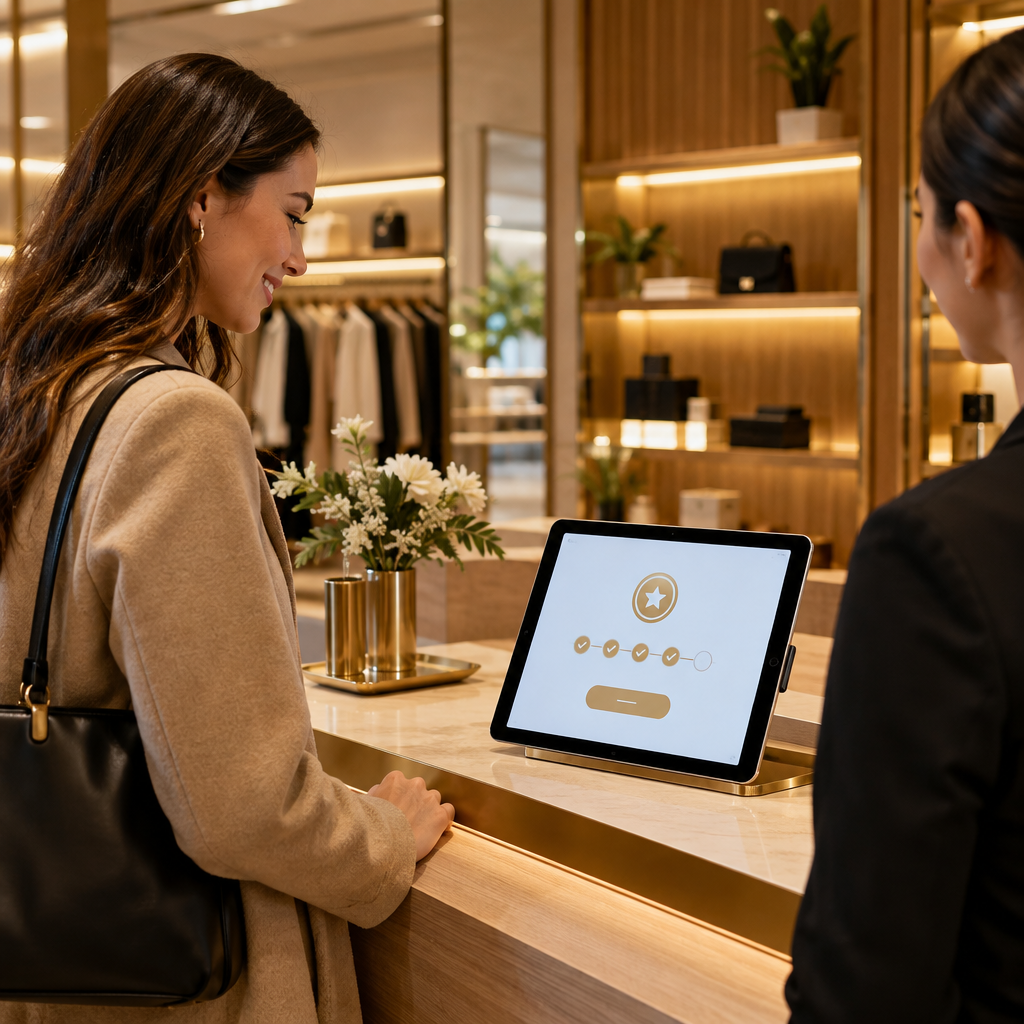
The counter workflow has four steps. First, the customer opens the wallet pass. Second, the cashier scans the barcode with the counter tablet. Third, the tablet logs the visit, updates the reward balance, and pushes the new pass data to the customer phone. Fourth, the cashier tells the customer the next reward milestone. Keep the tablet facing the cashier and the scanner within arm reach. Use a dedicated scanner app or a tablet camera with a fixed scan zone. Add a fallback lookup by customer name or last four digits of the pass ID for damaged screens. The workflow should fit inside the existing payment flow, before the receipt prints or during the bagging step.
### Tune for Cafes and Boutiques
Cafes need speed and punch progress. A cafe pass should show the current punch count and the next free drink. For a deeper playbook on lost punch cards, read [Cafe Loyalty Cards in Apple Wallet: Slashing Punch Card Loss by 80%](https://loyaltynation.io/resources/digital-coffee-punch-card-apple-wallet). Boutiques need customer capture and visit history. A boutique pass can show first-visit status, preferred size, and a return-visit reminder. For a counter capture workflow, read [Boutique Retail Customer Capture: Frictionless In-Store Digital Passes](https://loyaltynation.io/resources/boutique-retail-customer-loyalty-passes). Keep the same geofence logic across formats, then adjust the alert copy to the store type.
### Tune Alerts for Downtown Foot Traffic
Downtown foot traffic changes by daypart. Morning commuters pass coffee shops; lunch traffic clusters near offices; evening traffic shifts toward restaurants and theaters. Set the geofence radius to match the approach pattern. Keep the alert copy tied to the current offer and store hours. Avoid overlapping geofences from sister locations in the same district. If two locations sit within 200 meters, assign one primary fence or use a district pass with a general message. Staff devices should not trigger customer alerts; create a staff pass with location relevance disabled or a separate test pass. Review pass updates weekly and refresh the relevance message when promotions change.
## Measure Return Visits and Revenue
Wallet platforms do not expose complete lock-screen impression counts. Measure the events you control. Track pass adds at the counter, pass scans per week, first-to-second visit rate, visit gap by customer, reward redemptions, and average ticket after a lock-screen scan. Use unique pass IDs and a scan source field on the tablet to separate walk-in customers from pass holders. Compare stores with geofencing enabled against stores in a holdout group. Review the 7-day and 30-day return rate by daypart. The revenue calculation is straightforward: pass holder visits per month multiplied by average ticket multiplied by repeat rate. Add the labor saved from faster counter lookups and the revenue recovered from expiring rewards.
## Implementation Checklist
| Step | Action | Owner | Success Check |
| — | — | — | — |
| 1 | Map storefront coordinates and approach routes | Store manager | Door coordinates match sidewalk test |
| 2 | Build wallet pass template with barcode and visit fields | Marketing ops | Pass installs on iPhone and Android |
| 3 | Set geofence radius and relevance message | Loyalty lead | Lock-screen alert appears within target block |
| 4 | Place counter QR and train staff script | Front-counter lead | Staff completes add and scan in under 20 seconds |
| 5 | Connect tablet scan to visit logging | IT or platform admin | Pass updates within 5 seconds of scan |
| 6 | Run two-week radius and copy test | Operations | Pass scan rate and repeat visit rate improve |
| 7 | Document privacy consent and opt-out | Owner | Customer can remove pass or disable location |
## Conclusion and Next Step
Geofenced lock-screen alerts turn a downtown block into a timely storefront reminder. The pass lives in the customer phone wallet, the counter tablet logs the visit, and the geofence brings the customer back at the right moment. Keep the setup practical: accurate door coordinates, a tight radius, clear alert copy, fast counter scans, and weekly measurement. Book an in-store counter demo with Loyalty Nation to test the pass flow on your own tablet and storefront. Or calculate repeat foot traffic revenue gains from your current visit count and average ticket, then set the first geofence this week.